

WaveKat Voice now turns any recorded call into a link you can send. Open a call, choose who’s allowed to listen — just you, a few people you invite, or anyone with the link — and copy a URL. Whoever opens it gets a clean page with the audio player above a speaker-labeled transcript. Recordings start Private, sharing is opt-in per call, and you can stop sharing at any time. It shipped in WaveKat Voice 0.0.41 and is live on Mac and Linux today.
This continues the thread we keep pulling on: giving every small business the voice of a big one. A big company can pull up a call and forward it to a colleague, a client, or a supplier in seconds. Now you can too — from the same app that records and transcribes every call and lets your AI assistant place them.
What it does
Every call in WaveKat Voice is already recorded and transcribed on your computer. Sharing is the layer that lets someone else hear one. You pick a recording, choose an access level, and WaveKat Voice gives you a link. The person you send it to opens a web page — no app to install, nothing to download — and listens.
There are three access levels, and Private is always the default:
| Access level | Who can open it | Sign-in needed |
|---|---|---|
| Private | Only you | — (it’s just your own view) |
| Specific people | Only the people you invite, by email | Yes — they sign in to confirm it’s them |
| Anyone with the link | Anyone who has the link | No |
“Specific people” is for the cases where the recording is sensitive — a customer’s call, anything with personal details — and you want it locked to named people. “Anyone with the link” is for the cases where you just want it open: a testimonial, a demo, a call you’re fine being public. Switching a recording back to Private at any time kills every link to it.
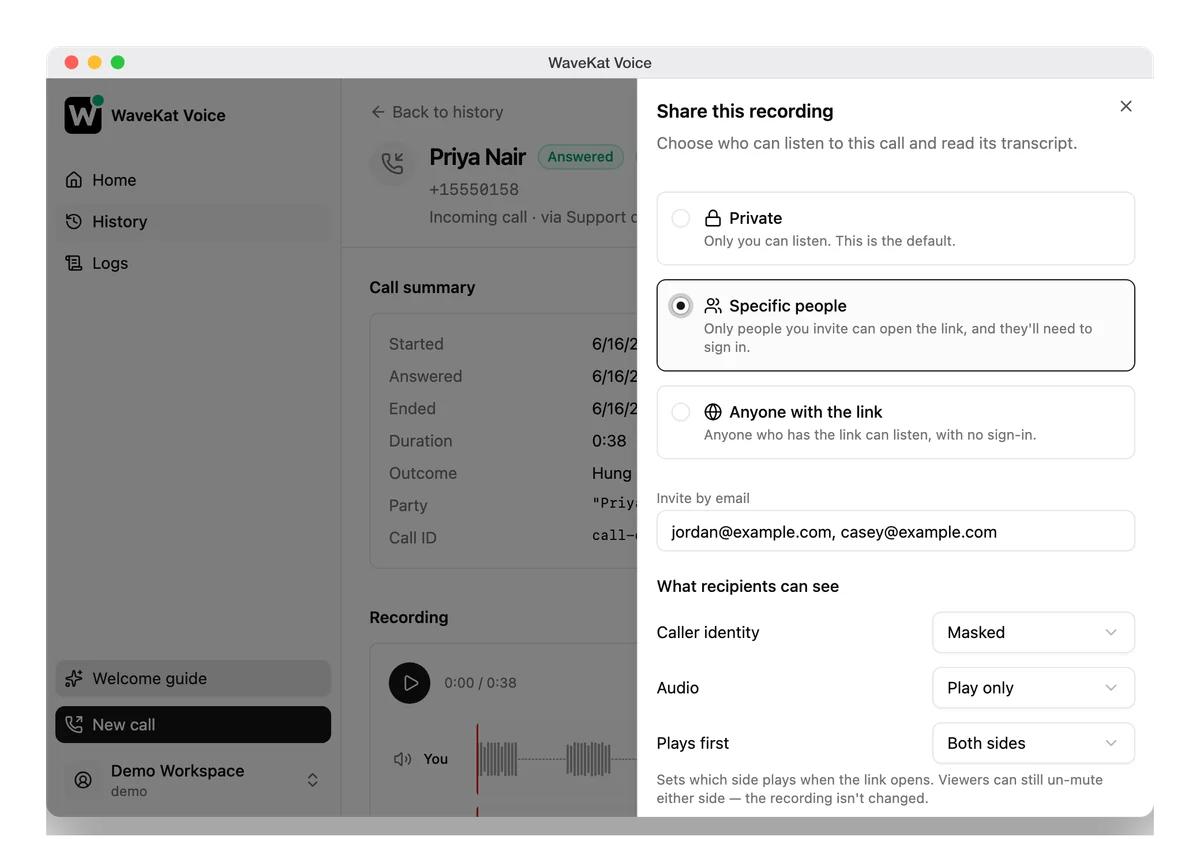
You decide exactly what they see
Sharing a recording isn’t all-or-nothing. Before you send the link, you choose what’s on the page the recipient opens:
- Caller identity — show the other party’s number, mask it, or hide it entirely.
- Transcript — include the written transcript or leave it off.
- Audio — let them play it in the browser, or play and download it, or hide the audio and share the transcript only.
- Which side plays first — start on both sides of the call, only your side, or only the caller’s. (The recording itself never changes — a listener can still un-mute either side.)
These controls exist because a call recording is dense with other people’s information. The point is to share the part that makes your point — a quote, a commitment, one side of a conversation — without handing over more than you mean to.
Going public is a deliberate step
Making a recording public is the one path with a guardrail in front of it. Before a link becomes open-to-anyone, WaveKat Voice stops and says, in plain words, what that means:
Anyone with the link will be able to listen to this call and read its transcript, with no sign-in. Calls often contain personal details like phone numbers, addresses, or payment information. Once a link is public you can’t control who it’s shared with. You can make it private again at any time.
A few things make this honest rather than a checkbox:
- Private is the sticky default. The share panel opens on Private every time. Public is never pre-selected and never one click closer than the safer choices.
- Every link is revocable. Set a recording back to Private and outstanding links stop working immediately.
What your recipient sees
The link opens a page built around the call, not around WaveKat. A two-lane audio player sits up top — your side and the caller’s as separate waveforms — with the full transcript below it, labeled by speaker (You and Caller) and searchable. Because the transcript is right there, the page works as the text alternative to the audio too, so a recipient who can’t play sound can still read the call.
If you shared with “Specific people,” the page asks them to sign in first and only opens for the accounts you invited. If you made it public, it opens straight to the player.
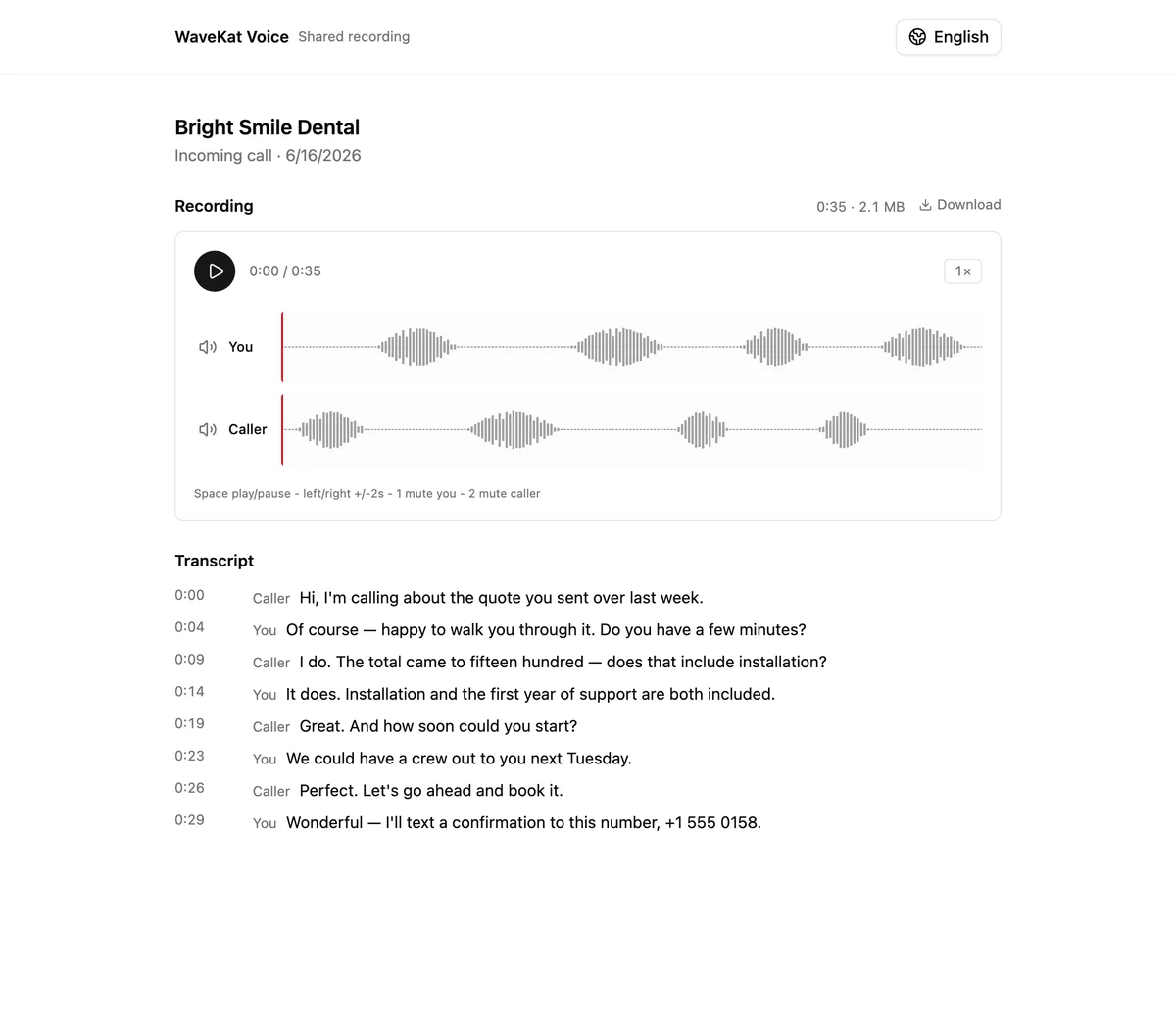
See it for yourself: open a real shared recording → — a public call shared as audio only, opened exactly the way a recipient sees it.
Sharing lives in the cloud — on purpose
A share link is something another person opens, possibly while your laptop is closed. WaveKat Voice runs on your own machine and isn’t reachable from the internet, so a shared recording has to live somewhere a recipient can actually reach it. That means sharing requires three things, and the Share panel tells you which one is missing:
- You’re signed in to your WaveKat account.
- Cloud sync is on, so the recording has been saved to your account.
- That recording has finished uploading.
Until all three are true, the Share control explains exactly what to do rather than sitting there greyed out. If you never sign in, nothing leaves your computer — and nothing is shareable, which is the same rule stated from the other side. Sharing is the one feature that, by design, can’t be local-only.
You can start a share from the desktop app or from your recordings on the web — either way it’s the same recording and the same link.
From the command line, too
Like the rest of WaveKat Voice, sharing is scriptable. With automation enabled, the command-line tool can share and un-share recordings:
# Share a recording with specific people
wavekat-voice recording share <call-id> --visibility restricted --invite [email protected]

# Stop sharing — reverts the recording to Private
wavekat-voice recording unshare <call-id>
Making a recording public from a script (or an AI assistant) requires an explicit confirmation — --yes on the command line, a confirm_public flag through the assistant tools — so nothing goes public on a vague instruction.
Frequently asked questions
How do I share a call recording from WaveKat Voice?
Open the call in WaveKat Voice, choose an access level in the Share panel — Private, Specific people, or Anyone with the link — and copy the link. The recipient opens it in a browser to listen and read the transcript; there’s no app to install. Recordings are Private until you share them.
Can I control what the recipient can hear or read?
Yes. Before you share, you choose whether to show, mask, or hide the caller’s number, whether to include the transcript, whether the audio is playable or also downloadable (or hidden entirely), and which side of the call plays first. The recording itself is never altered.
Is a shared recording public to the whole internet?
Only if you choose “Anyone with the link,” and WaveKat Voice warns you before that happens. You can make a recording Private again at any time, which disables existing links. The default for every recording is Private.
Do I need an account to share recordings?
Yes. Sharing requires being signed in to your WaveKat account with cloud sync on, because the link has to be reachable when your computer is asleep. If you don’t sign in, your recordings stay entirely on your computer and aren’t shareable.
Can someone open a shared link without signing in?
It depends on the access level. “Anyone with the link” opens with no sign-in. “Specific people” requires the recipient to sign in as one of the accounts you invited. “Private” means only you can open it.
Which platforms support recording sharing?
WaveKat Voice runs on Mac and Linux today, with Windows coming when there’s demand. Sharing works on both supported platforms, and recipients open shared links in any web browser.
Try it
Download WaveKat Voice, sign in and turn on cloud sync, then open any recorded call and hit Share. Start Private, share with a couple of people, and only go public when you mean to.
Recording, transcription, and now sharing — the call is the unit of work, and WaveKat Voice is making it as easy to pass around as a document.