

WaveKat Voice now ships with a command-line tool, so a program you trust — including an AI assistant like Claude — can place and manage real phone calls for you. Ask your assistant to “call the dentist and wait until someone picks up,” and it dials through the app you already have open, follows the call, and tells you how it went. It’s built into the app today on Mac, Windows and Linux, and it’s off until you switch it on.
This is the next step toward the thing we keep coming back to: giving every small business the voice of a big one. A big company has a switchboard and software that drives it. Now your computer — and the assistant running on it — can be that switchboard.
What it actually does
WaveKat Voice has always had a phone running quietly in the background: it registers with your SIP provider and handles calls. What’s new is a second way to drive it — a command called wavekat-voice that talks to the running app.
To be precise about the boundary, because it matters:
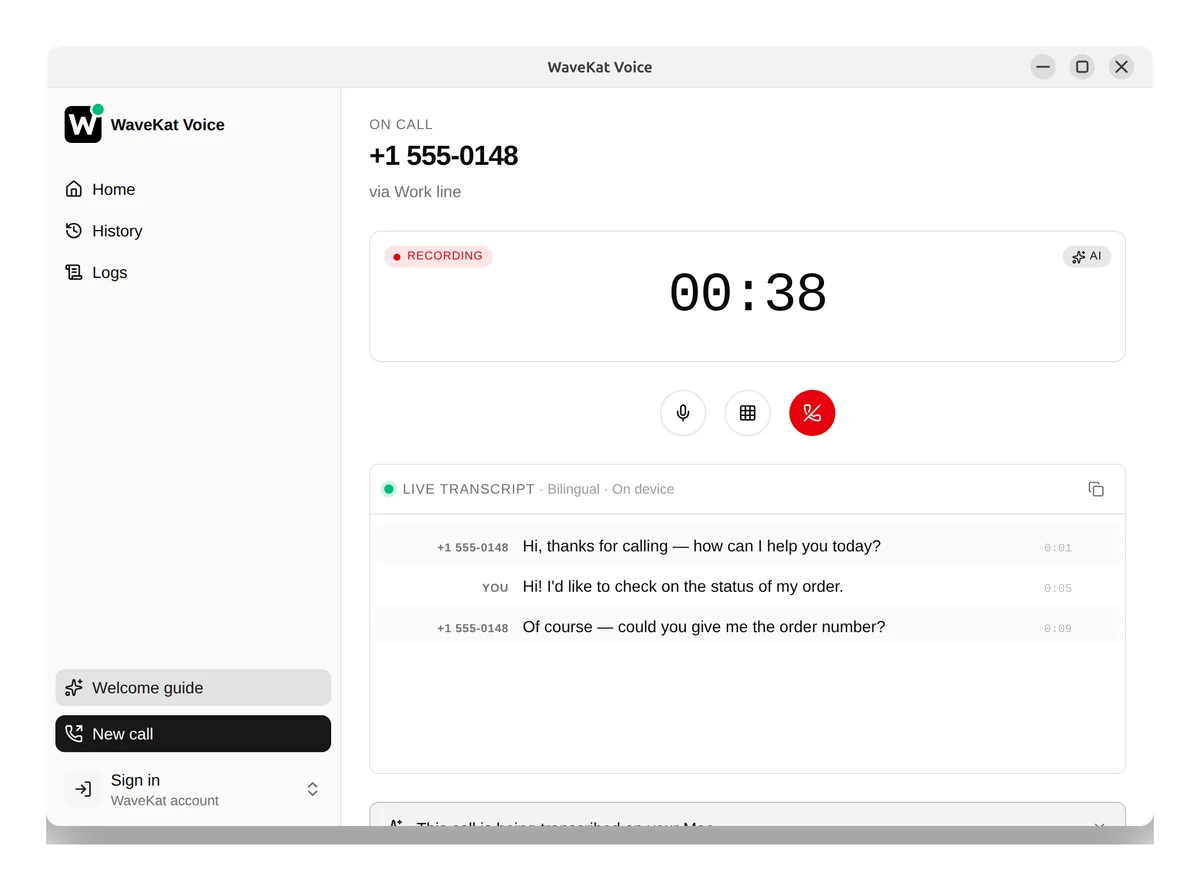
- It places and manages calls. Dial a number, wait for the outcome, list what’s ringing right now, answer or decline an incoming call, send touch-tones to navigate a phone menu, hang up, pull the transcript.
- You still do the talking. Audio flows through your computer’s microphone and speakers, exactly as it does when you click “call” in the app. The assistant sets up and steers the call; the human on the call is you. (An assistant that talks on the call itself is a separate, later project.)
So the assistant is the hands on the dialpad, not a voice on the line. That’s a deliberate, honest line — and for the everyday “get me through to a human” chores, it’s most of what you actually want.
There’s nothing to install
The wavekat-voice command is the same program that runs the app — it’s already on your disk the moment you install WaveKat Voice. There’s no second download, no separate package, no version that can drift out of sync with the app.
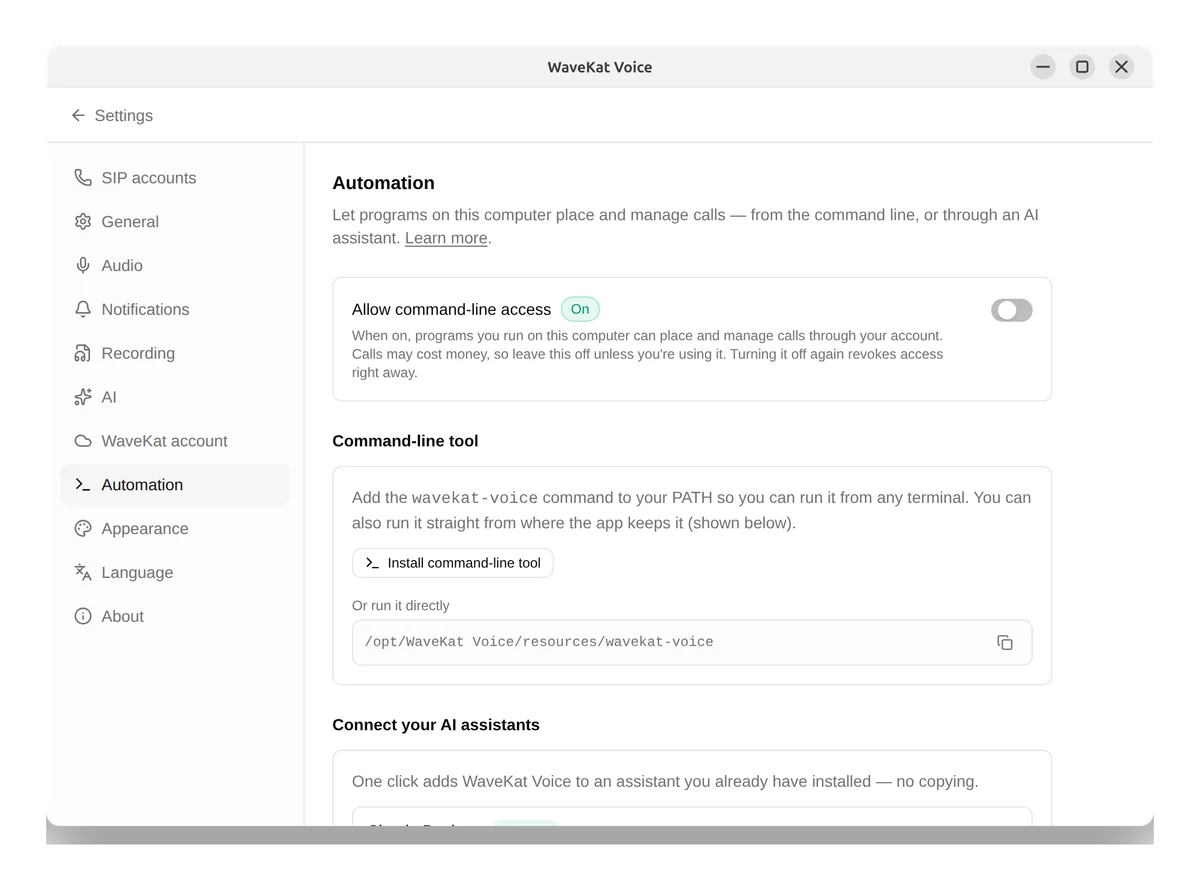
It is off by default. While automation is on, any program you run on your computer can place calls through your account — and calls may cost money — so we leave that decision to you. Turn it on in Settings → Automation, where there’s also a one-click button to add wavekat-voice to your PATH so any terminal can find it.
Connect an AI assistant in one click
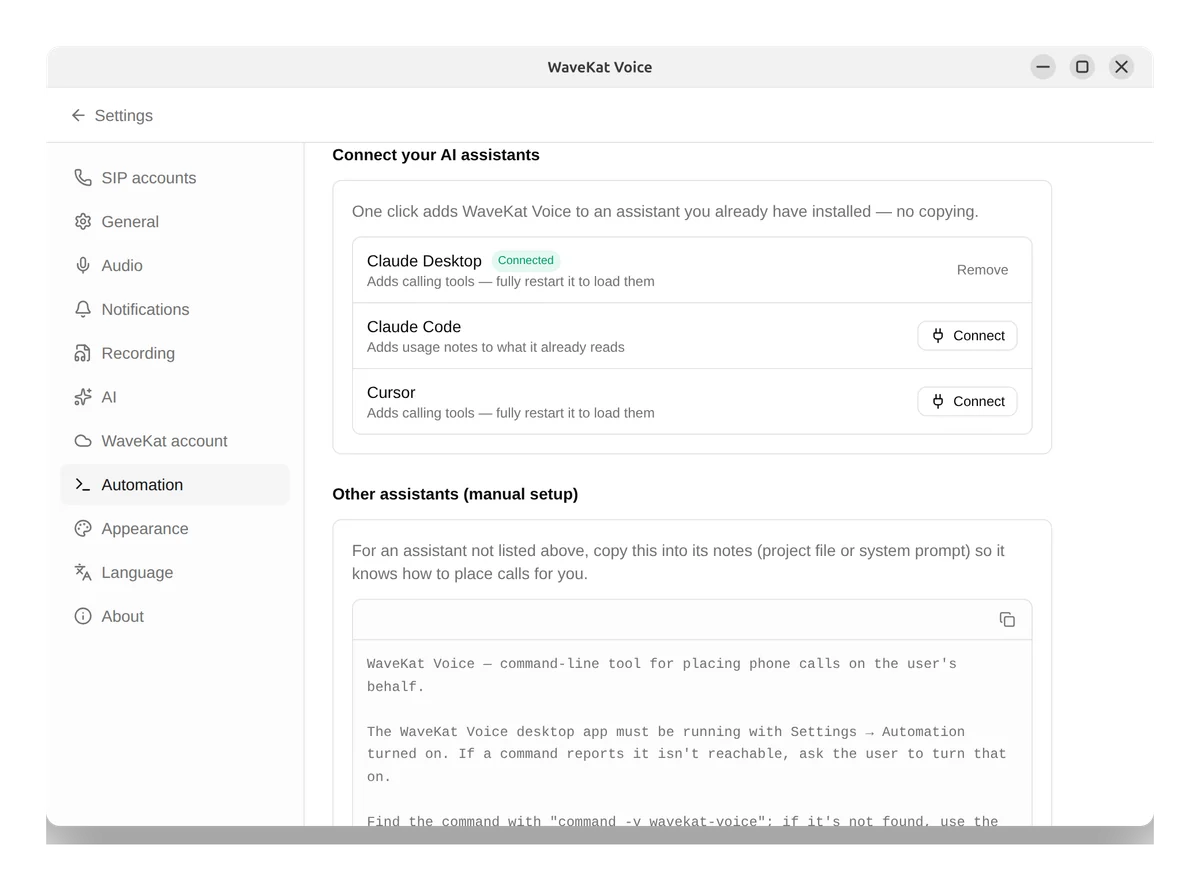
The fastest path is the Settings → Automation page itself. It looks for AI assistants you already have installed and offers a Connect button for each. Today that covers:
| Assistant | How it connects |
|---|---|
| Claude Desktop, Cursor, Windsurf | Through an MCP server bundled in the app |
| Claude Code, Codex, Gemini | Through a managed note in their instructions file |
One click wires it up — nothing to copy or paste. After that, you just ask the assistant to make a call. Two things worth knowing: some assistants need a full restart (quit and reopen) to pick up the new tools, and the connection keeps itself current — when WaveKat Voice updates in the background, any assistant you’ve connected is quietly kept in sync, so you never have to reconnect.
What it looks like from a terminal
Every command takes --json for machine-readable output, which is what makes it comfortable for an assistant to drive. A few examples:
# Is the app running, and which accounts are connected?
wavekat-voice status

# Place a call and wait — the exit code says how it went.
wavekat-voice call +14155550123 --wait
echo "result: $?"

# Find a call that's happening right now, then hang it up.
wavekat-voice call list --json | jq -r '.[0].id' | xargs wavekat-voice call hangup
The --wait exit code is the contract a script (or an assistant) branches on: 0 answered then ended normally, 2 busy or declined, 3 failed or dropped, 4 no answer. No output parsing required to know what happened.
Commands are grouped by what they act on — call for placing and handling calls, recording for saved audio, log for the activity log — with status, accounts, and a live events stream at the top level. Run wavekat-voice call --help to see the full set.
Why we built it this way
A few choices we’re happy with:
- One binary, no new surface. The command-line tool is the app’s own daemon wearing a different hat — so it inherits the app’s signing, its auto-updates, and its security review for free, and it can never be a stale version.
- The binary is the source of truth. Help text carries the exit codes and examples; the assistant integrations point at
wavekat-voice --helprather than freezing a command list that would rot. Update the app and the tools update with it. - Off by default, opt-in, revocable. Placing a paid phone call is consequential, so automation stays off until you ask for it, and Remove unhooks any assistant again without touching the rest of its settings.
Frequently asked questions
Can an AI assistant place phone calls with WaveKat Voice?
Yes. With automation enabled in WaveKat Voice (Settings → Automation), an AI assistant like Claude can place, follow, and end real phone calls through the app’s command-line tool or its MCP server. The assistant drives the call; you speak on it.
Does the AI talk on the call instead of me?
No. WaveKat Voice routes call audio through your computer’s microphone and speakers — you do the talking. The assistant handles dialing, waiting for an answer, sending menu tones, and hanging up.
Do I need to install anything extra to use the command line?
No. The wavekat-voice command ships inside the WaveKat Voice app, so it’s already on your computer. You only need to turn on automation in Settings → Automation, and optionally click “Install command-line tool” to add it to your PATH.
Is it safe to leave automation on?
Leave it off unless you’re using it. While automation is on, any program you run on your computer can place calls through your account, which may cost money. It’s off by default for that reason, and you can switch it off again at any time.
Which assistants can connect in one click?
Claude Desktop, Claude Code, Cursor, Codex, Gemini, and Windsurf today — via a bundled MCP server for the desktop assistants and a managed instructions note for the command-line ones.
Which platforms support this?
WaveKat Voice runs on Mac, Windows and Linux. The command-line tool and assistant integrations are available on all three supported platforms.
Try it
Download WaveKat Voice, open Settings → Automation, and connect your assistant. The full command reference — every command, its JSON output, and the exit codes — lives in the automation docs.
We’re just getting started here. Driving calls is the foundation; an assistant that can also hold the conversation is where this goes next.